> ## Documentation Index
> Fetch the complete documentation index at: https://docs.tryinvesti.com/llms.txt
> Use this file to discover all available pages before exploring further.
# Attachments and voice
> Attach files to a chat message or dictate your question with voice input.
## Attaching files
Use the paperclip button in the composer, or drag files onto it. The analyst can read the attachment alongside your question, which is useful for a broker note, an export, or a screenshot.
Accepted file types:
| Category | Formats |
| --------- | ------------------------- |
| Images | PNG, JPEG, WebP, GIF |
| Documents | PDF, DOCX, TXT, MD, LOG |
| Data | CSV, TSV, XLSX, XLS, JSON |
Each file can be up to **20 MB**. Legacy binary `.doc` files are not supported; save as `.docx` first. Files upload as soon as you add them; sending waits until uploads finish.
## Working with data attachments
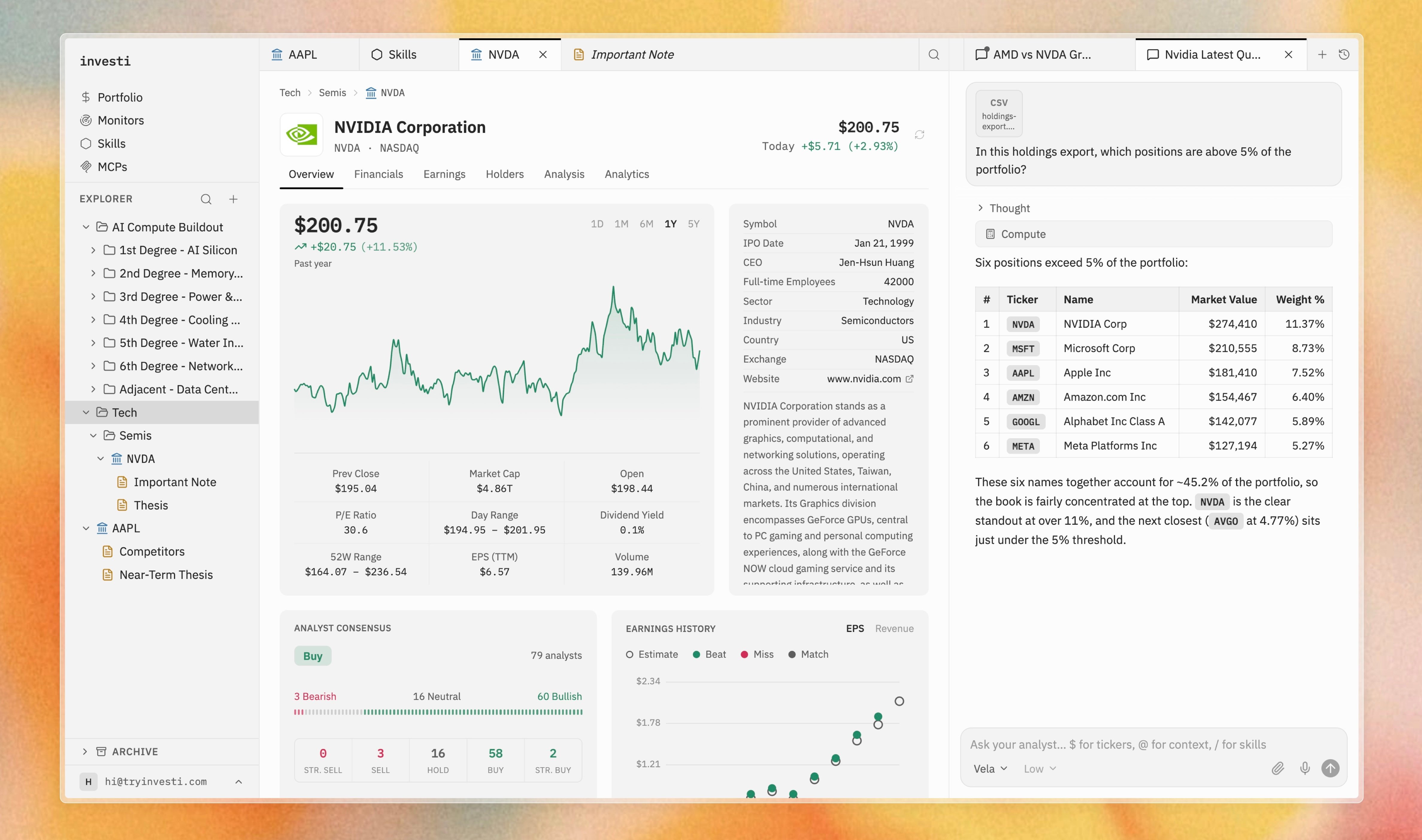
A CSV, TSV, or Excel file is not just text to the analyst. It has a compute tool it can call to open the file, run calculations, and filter or reshape the data before answering. It's the same kind of work you'd do in a spreadsheet, just driven by your question instead of formulas.
```text theme={"theme":{"light":"github-light","dark":"github-dark"}}
In this holdings export, which positions are above 5% of the portfolio?
```
 ## Voice dictation
Select the microphone button (**Dictate**) in the composer to speak instead of type:
1. Click the mic. It shows a spinner while connecting, then turns into a red stop button.
2. Speak. Your words stream into the input as live text, appended after anything already typed.
3. Click the stop button to finish, then edit or send as usual.
Sending is disabled while a recording is in progress.
## Voice dictation
Select the microphone button (**Dictate**) in the composer to speak instead of type:
1. Click the mic. It shows a spinner while connecting, then turns into a red stop button.
2. Speak. Your words stream into the input as live text, appended after anything already typed.
3. Click the stop button to finish, then edit or send as usual.
Sending is disabled while a recording is in progress.