> ## Documentation Index
> Fetch the complete documentation index at: https://docs.tryinvesti.com/llms.txt
> Use this file to discover all available pages before exploring further.
# Chatting with the analyst
> How the AI analyst works: asking questions, reading its reasoning and tool calls, and managing conversations.
The analyst lives in the right panel of the studio. Ask it anything about markets, companies, or your own research. It answers grounded in real financial data, with its work visible.
## Asking a question
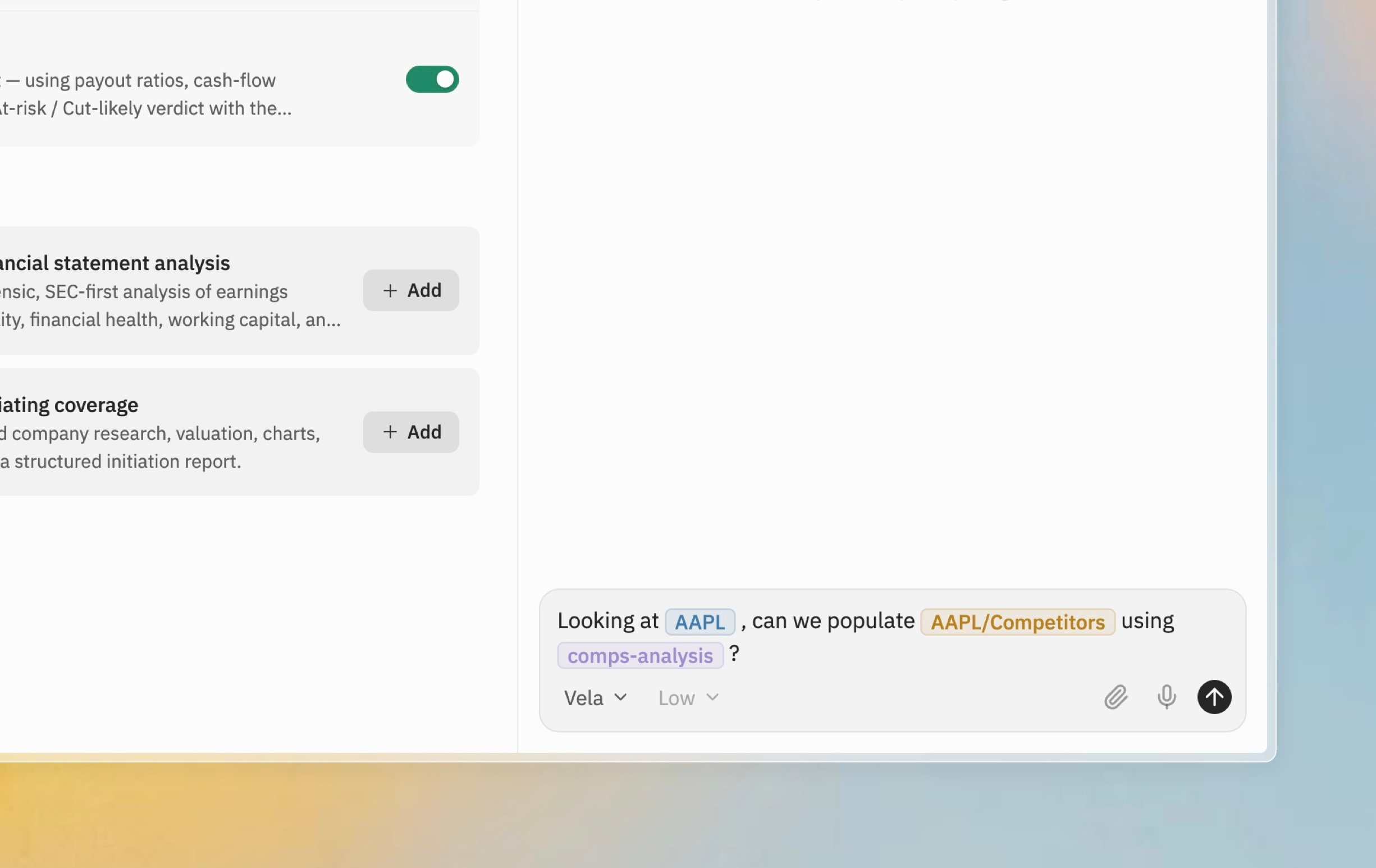
Type into the composer at the bottom of the chat panel and press Enter. The placeholder is a reminder of the three triggers:
> Ask your analyst… `$` for tickers, `@` for context, `/` for skills
Each trigger renders as its own colored chip: {"$NVDA"} for a company, {"@Tech/Semis/$NVDA/Thesis"} for a note, {"/earnings-analysis"} for a skill, {"/edgar"} for an MCP server. See [Mentions and triggers](/analyst/mentions) for how each one works.
 ## Reading the answer
The analyst shows its work rather than just producing text:
* **Thinking**: its reasoning streams in as it works, so you can follow the logic.
* **Tool calls**: when it pulls financials, quotes, transcripts, or data from a [connected MCP server](/integrations/mcp), each call appears as a pill you can inspect, along with its result.
* **Subagents**: for larger tasks the analyst can delegate to subagents; their work nests inside the conversation.
* **Approvals**: if the analyst wants to change something in your workspace, an approval card appears in the chat. Nothing is written until you approve it. See [Approving changes](/analyst/approvals).
The analyst knows your workspace: your folders, companies, and notes. Questions like "which of my companies reported this week?" work without any extra context.
## Managing conversations
* **New chat**: open a fresh analyst tab with Cmd+Shift+L (Windows/Linux: Ctrl+Shift+L), or from the **New Analyst** entry in the user menu. You can keep several conversations open side by side.
* **Stop**: a running answer can be stopped at any time; the turn is marked "Stopped".
* **Queueing**: if you send a message while the analyst is still working, it queues and sends when the current turn finishes.
* **Reconnection**: if you reload the page mid-answer, the chat reattaches to the in-flight run instead of losing it. Completed turns also sync across browser tabs.
The analyst is a research tool, not investment advice. Its reasoning and sources stay visible precisely so you can verify them.
## Reading the answer
The analyst shows its work rather than just producing text:
* **Thinking**: its reasoning streams in as it works, so you can follow the logic.
* **Tool calls**: when it pulls financials, quotes, transcripts, or data from a [connected MCP server](/integrations/mcp), each call appears as a pill you can inspect, along with its result.
* **Subagents**: for larger tasks the analyst can delegate to subagents; their work nests inside the conversation.
* **Approvals**: if the analyst wants to change something in your workspace, an approval card appears in the chat. Nothing is written until you approve it. See [Approving changes](/analyst/approvals).
The analyst knows your workspace: your folders, companies, and notes. Questions like "which of my companies reported this week?" work without any extra context.
## Managing conversations
* **New chat**: open a fresh analyst tab with Cmd+Shift+L (Windows/Linux: Ctrl+Shift+L), or from the **New Analyst** entry in the user menu. You can keep several conversations open side by side.
* **Stop**: a running answer can be stopped at any time; the turn is marked "Stopped".
* **Queueing**: if you send a message while the analyst is still working, it queues and sends when the current turn finishes.
* **Reconnection**: if you reload the page mid-answer, the chat reattaches to the in-flight run instead of losing it. Completed turns also sync across browser tabs.
The analyst is a research tool, not investment advice. Its reasoning and sources stay visible precisely so you can verify them.