> ## Documentation Index
> Fetch the complete documentation index at: https://docs.tryinvesti.com/llms.txt
> Use this file to discover all available pages before exploring further.

# Approving changes

> The analyst never changes your workspace silently. Anything it wants to change arrives as a proposal you approve or reject.

The analyst can read anything in your workspace, but it can't change anything on its own. When it wants to update a thesis, append a finding, or restructure a checklist, it proposes the change and waits. Nothing is written until you approve it.

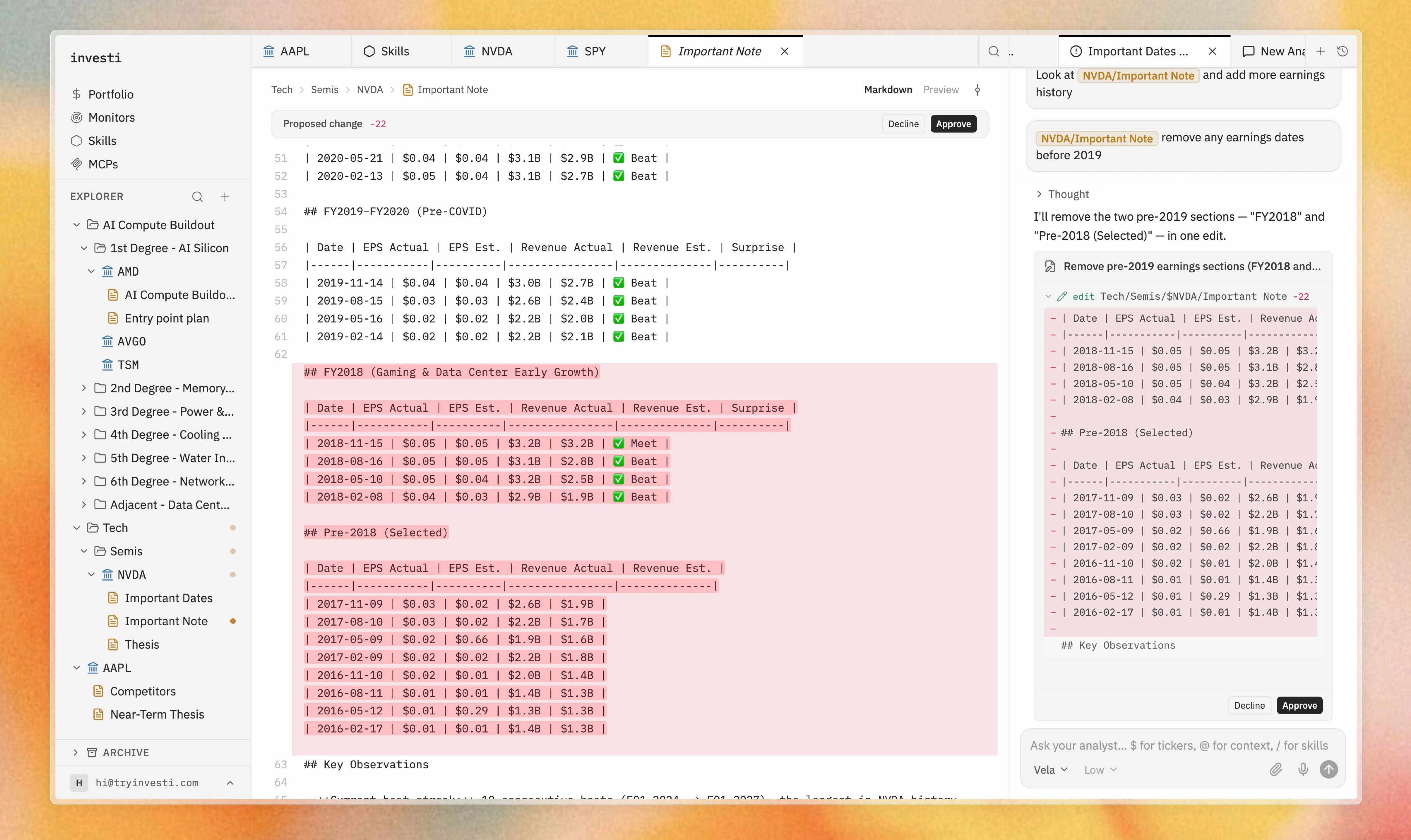
The proposal is a diff: your current text on one side, the proposed text on the other, with the changes marked.

You ask for the change the same way you ask anything else. The draft still waits for you.

<div className="choice-grid-3">
  <div className="choice-card">
    <p className="choice-card-kicker chip-note">A note</p>

    <div className="prompt-example">
      Update this thesis with what we just found.
    </div>
  </div>

  <div className="choice-card">
    <p className="choice-card-kicker chip-skill">A skill</p>

    <div className="prompt-example">
      Write a skill that reruns these earnings checks.
    </div>
  </div>

  <div className="choice-card">
    <p className="choice-card-kicker chip-monitor">A monitor</p>

    <div className="prompt-example">
      Check this again every Monday.
    </div>
  </div>
</div>

Right now those three kinds of change go through this review step: edits to your notes, edits to your [skills](/skills), and [monitors](/organize/monitors) the analyst drafts on your behalf. A connected [portfolio](/organize/portfolio) is read-only. As more of the workspace becomes editable, the same rule holds: you see the exact change before it lands, every time.

## How a proposal works

<Steps>
  <Step title="The analyst proposes">
    During a conversation, an approval card appears in the chat describing the change. At the same time, the affected note gets a warning-colored dot in the explorer ("Change awaiting approval"), with dimmed dots on its parent folders so you can find it later.
  </Step>

  <Step title="You review the diff">
    Open the note to see a side-by-side diff of exactly what would change: your current text against the proposed text, with a review bar on top. When one proposal is part of a batch, the bar says so ("part of N changes").
  </Step>

  <Step title="Approve or decline">
    Select **Approve** to apply the change or **Decline** to reject it. You can act from the note's review bar or from the approval card in the chat; the two stay in sync. Approving creates a new revision in the note's [version history](/organize/notes#version-history), so even accepted changes can be rolled back later.
  </Step>
</Steps>

<Frame>
  <img src="https://mintcdn.com/investi-2b043b7b/BjBlqArEaduBuE5t/images/organize/approvals/approval-diff.jpeg?fit=max&auto=format&n=BjBlqArEaduBuE5t&q=85&s=48397a7d18c46ad71de7432f0bf3de39" alt="Approval card in chat next to a side-by-side note diff and review bar" width="4683" height="2789" data-path="images/organize/approvals/approval-diff.jpeg" />
</Frame>

## Why it works this way

Skills and conversations steer *how* the analyst works, but never *what* it may change on your behalf. The diff-and-approve flow guarantees that:

* You always see the exact change before it lands.
* Your workspace never drifts without your knowledge.
* Every applied change is one revision in history, reversible at any time.

<Tip>
  Declining a proposal does not end the conversation. The analyst continues with your verdict in hand.
</Tip>


This documentation is built and hosted on [Mintlify](https://mintlify.com), a developer documentation platform.