> ## Documentation Index
> Fetch the complete documentation index at: https://docs.tryinvesti.com/llms.txt
> Use this file to discover all available pages before exploring further.
# Folders and the explorer
> Organize companies, notes, and folders the way developers organize code: drag, rename, archive, and search.
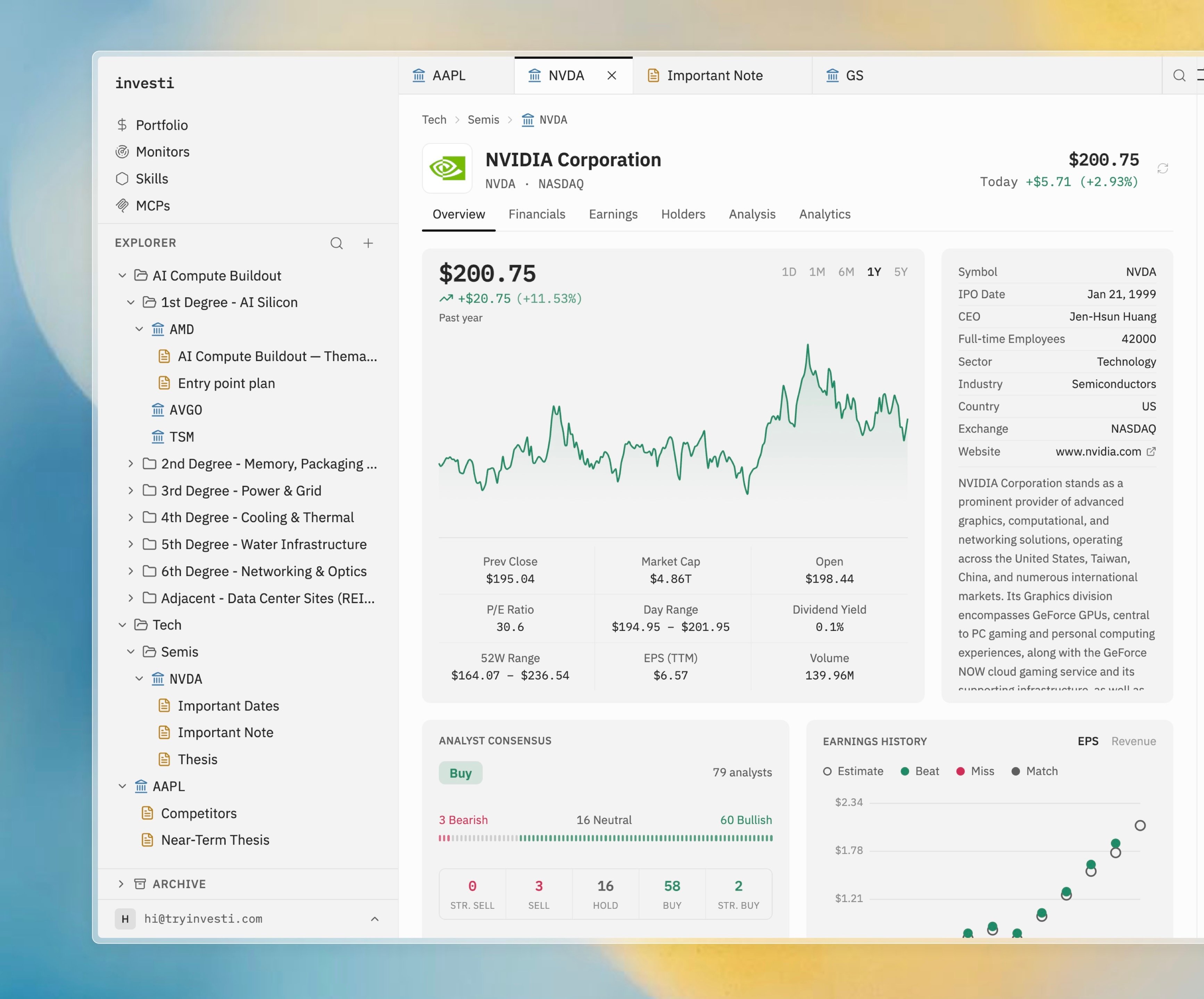
The **Explorer** on the left is your research tree. There is no fixed structure: one watchlist, fifty, or none. Folders by sector, by theme, by conviction, or by whatever maps to how you actually think.
 ## What goes in the tree
Three kinds of items, freely nestable:
* **Folders**: containers for anything, including other folders.
* **Companies**: a ticker; opens the [company dashboard](/company/dashboards) and can hold notes of its own.
* **Notes**: markdown documents; see [Notes](/organize/notes).
Companies and notes carry the same colors in the tree that their [mention chips](/analyst/mentions#chip-colors) carry in chat.
Any container (the root, a folder, or a company) can hold any type.
## Adding items
Select the **+** button in the explorer header or right-click a container, then choose **Add Company**, **New Note**, or **New Folder**. Adding a company opens a live search: type a ticker or company name and pick a result or press Enter. The ticker is validated before it lands.
Shortcuts: Cmd+Shift+O adds a company, Cmd+Shift+D creates a note. See [Keyboard shortcuts](/organize/keyboard-shortcuts).
## Moving things around
* **Drag and drop**: drag any row into a folder or company. Multi-selected items drag together.
* **Multi-select**: Cmd-click to toggle, Shift-click for a range, Cmd+A for everything.
* **Rename**: press F2 or use the context menu.
* **Keyboard navigation**: arrow keys move and expand/collapse; Enter toggles a folder.
## Archiving
Stop following a company without losing a single note: choose **Archive** from the context menu, or drag items onto the **Archive** section at the bottom of the explorer. Archived items keep everything and can be unarchived from their context menu. They are excluded from `@`-mention suggestions but remain reachable under {"@.archive/…"}.
## Explorer search
The search icon in the explorer header filters the companies already in your tree; click a result to open its tab. To find companies you *don't* have yet, use **Add Company** or a `$` mention in chat.
A warning-colored dot on a note means the analyst has [proposed an edit awaiting your approval](/analyst/approvals); parent folders show a dimmed dot so proposals are findable from anywhere in the tree.
## What goes in the tree
Three kinds of items, freely nestable:
* **Folders**: containers for anything, including other folders.
* **Companies**: a ticker; opens the [company dashboard](/company/dashboards) and can hold notes of its own.
* **Notes**: markdown documents; see [Notes](/organize/notes).
Companies and notes carry the same colors in the tree that their [mention chips](/analyst/mentions#chip-colors) carry in chat.
Any container (the root, a folder, or a company) can hold any type.
## Adding items
Select the **+** button in the explorer header or right-click a container, then choose **Add Company**, **New Note**, or **New Folder**. Adding a company opens a live search: type a ticker or company name and pick a result or press Enter. The ticker is validated before it lands.
Shortcuts: Cmd+Shift+O adds a company, Cmd+Shift+D creates a note. See [Keyboard shortcuts](/organize/keyboard-shortcuts).
## Moving things around
* **Drag and drop**: drag any row into a folder or company. Multi-selected items drag together.
* **Multi-select**: Cmd-click to toggle, Shift-click for a range, Cmd+A for everything.
* **Rename**: press F2 or use the context menu.
* **Keyboard navigation**: arrow keys move and expand/collapse; Enter toggles a folder.
## Archiving
Stop following a company without losing a single note: choose **Archive** from the context menu, or drag items onto the **Archive** section at the bottom of the explorer. Archived items keep everything and can be unarchived from their context menu. They are excluded from `@`-mention suggestions but remain reachable under {"@.archive/…"}.
## Explorer search
The search icon in the explorer header filters the companies already in your tree; click a result to open its tab. To find companies you *don't* have yet, use **Add Company** or a `$` mention in chat.
A warning-colored dot on a note means the analyst has [proposed an edit awaiting your approval](/analyst/approvals); parent folders show a dimmed dot so proposals are findable from anywhere in the tree.