> ## Documentation Index
> Fetch the complete documentation index at: https://docs.tryinvesti.com/llms.txt
> Use this file to discover all available pages before exploring further.
# Quickstart
> Sign in, set up your workspace, and run your first piece of research with the analyst.
This guide takes you from signing in to your first researched company in a few minutes.
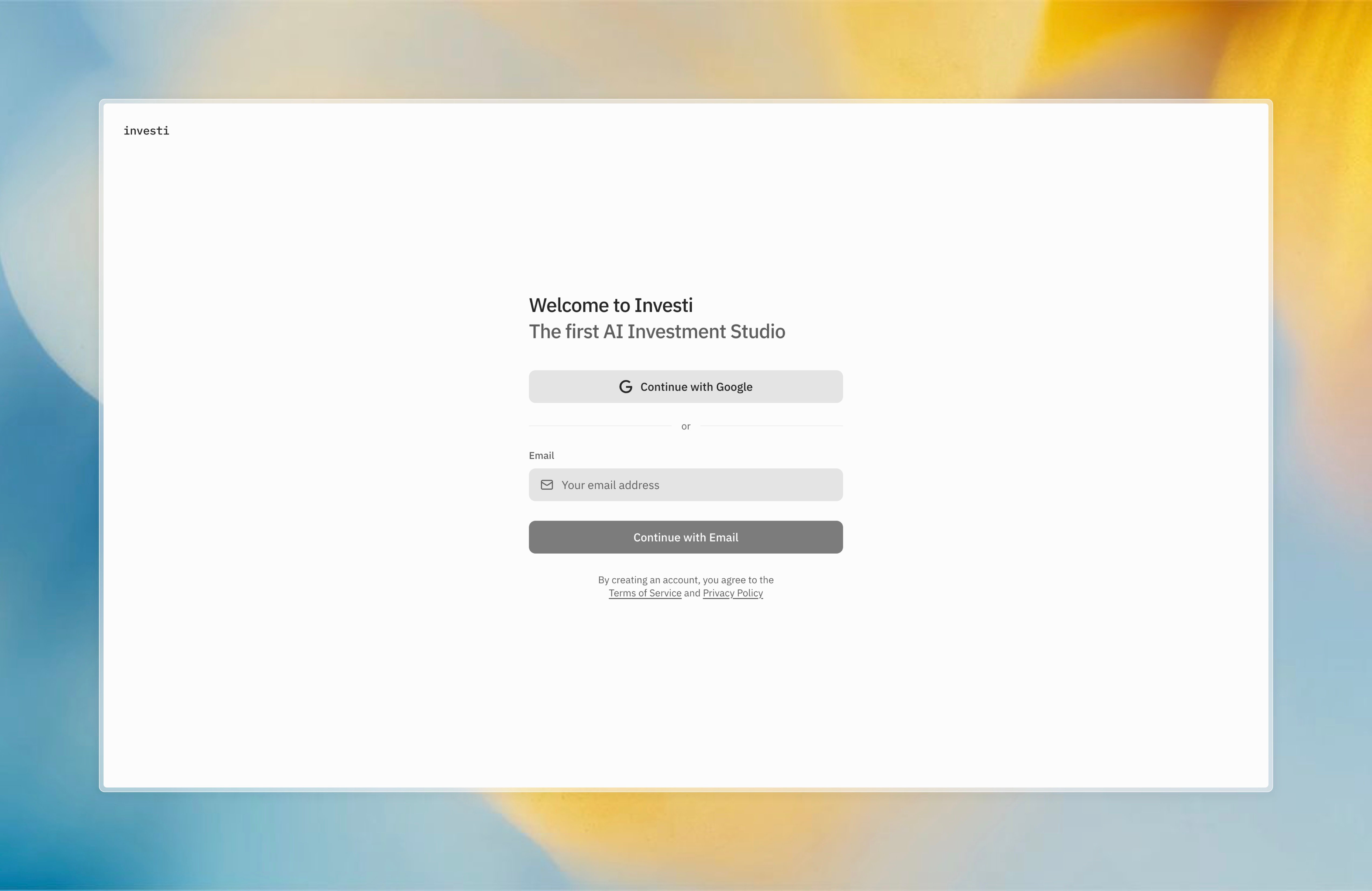
Go to [tryinvesti.com/signin](https://tryinvesti.com/signin) and choose one of two options:
* **Continue with Google**: signs you in with your Google account.
* **Email code**: enter your email and select **Continue with Email**. Investi sends you a 6-digit code; enter it and select **Verify Code**. If the code doesn't arrive, you can resend it after 60 seconds.
No password is required either way.
 On your first visit, Investi asks which best describes you (individual investor, analyst, advisor, student, or just exploring) and then offers a short spotlight tour of the workspace: the explorer, companies, the analyst, skills, and MCPs. You can skip it at any time with Esc.
Investi currently focuses on US-listed equities. It works from anywhere in the world.
In the **Explorer** on the left, select the **+** button (or right-click) and choose **Add Company**. Search by ticker or company name, for example `NVDA`, and press Enter. The company appears in your tree and opens as a tab with its [dashboard](/company/dashboards): price, financials, earnings, holders, and more.
The chat panel on the right is your [AI analyst](/analyst/chat). Ask a real question, referencing the company with `$`:
```text theme={"theme":{"light":"github-light","dark":"github-dark"}}
How has $NVDA's data center revenue trended over the last 8 quarters, and what did management say about it on the latest call?
```
Watch it think, call tools against real financial data, and answer with its reasoning visible.
Right-click the company in the explorer and choose **New Note** to keep your thesis next to the data. Notes are markdown, autosave as you type, and keep [version history](/organize/notes#version-history). When the analyst wants to update a note, it proposes the change as a diff you [approve or reject](/analyst/approvals).
## Where to go next
Mentions, attachments, voice dictation, models, and edit approvals.
Everything in a company tab, section by section.
Teach the analyst your process with reusable workflows.
Connect your own tools and data sources.
On your first visit, Investi asks which best describes you (individual investor, analyst, advisor, student, or just exploring) and then offers a short spotlight tour of the workspace: the explorer, companies, the analyst, skills, and MCPs. You can skip it at any time with Esc.
Investi currently focuses on US-listed equities. It works from anywhere in the world.
In the **Explorer** on the left, select the **+** button (or right-click) and choose **Add Company**. Search by ticker or company name, for example `NVDA`, and press Enter. The company appears in your tree and opens as a tab with its [dashboard](/company/dashboards): price, financials, earnings, holders, and more.
The chat panel on the right is your [AI analyst](/analyst/chat). Ask a real question, referencing the company with `$`:
```text theme={"theme":{"light":"github-light","dark":"github-dark"}}
How has $NVDA's data center revenue trended over the last 8 quarters, and what did management say about it on the latest call?
```
Watch it think, call tools against real financial data, and answer with its reasoning visible.
Right-click the company in the explorer and choose **New Note** to keep your thesis next to the data. Notes are markdown, autosave as you type, and keep [version history](/organize/notes#version-history). When the analyst wants to update a note, it proposes the change as a diff you [approve or reject](/analyst/approvals).
## Where to go next
Mentions, attachments, voice dictation, models, and edit approvals.
Everything in a company tab, section by section.
Teach the analyst your process with reusable workflows.
Connect your own tools and data sources.