

What it can see and change
Sees
Already in front of it
Your folders, companies, and notes, without you pasting them. A connected brokerage too. Questions like “which of my companies reported this week?” work because the workspace is already there. It also looks up financials, quotes, transcripts, news, and anything from a connected MCP server.
How you talk to it
Type a question in the composer. When you want to pin something into this message, use a mention. Mentions are for pointing, not for unlocking access.Ask your analyst…
What you can ask
Research is the obvious use. You can also ask it to do workspace work, then review the proposal.Research
A thesis
A skill
A monitor
Asking a question
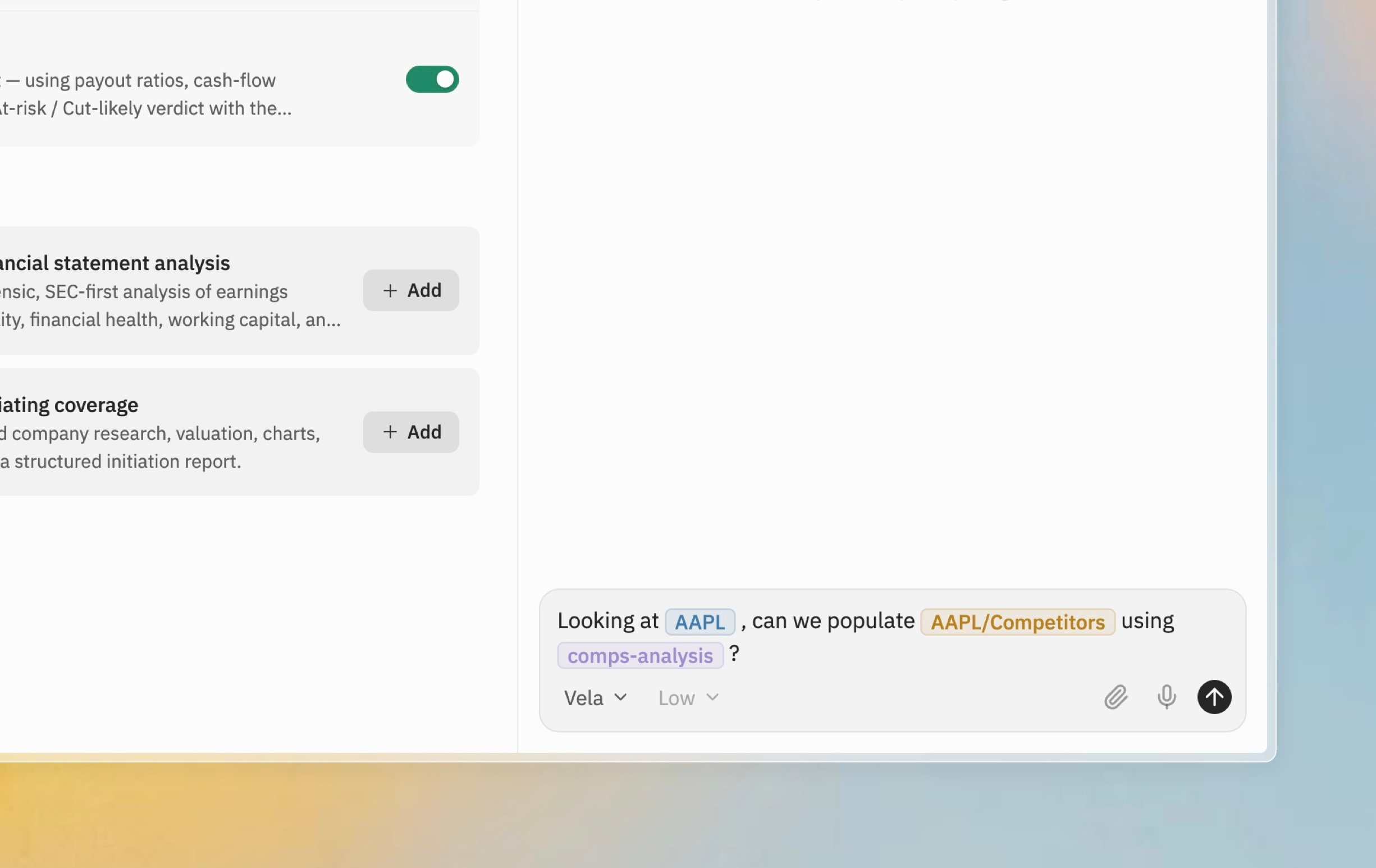
Type into the composer at the bottom of the chat panel and press Enter to send; Shift+Enter starts a new line. The placeholder is a reminder of the three triggers:Ask your analyst…Each trigger renders as its own colored chip. See Mentions for how each one works.$for tickers,@for context,/for skills
Reading the answer
The analyst shows its work rather than just producing text.Thinking
Reasoning as it works, so you can follow the logic.
Tool calls
A lookup the analyst made. Open the pill to see financials, a transcript, or data from a connected MCP server.
Subagents
A built-in specialist it sends out for a noisy job. Their work nests inside the conversation. See Subagents.
Approvals
A proposed edit. Nothing lands until you say so. See Approving changes.
Skills, MCP, subagents, and monitors
Skill
A process you give the analyst
The same checks every time
MCP
A connected source of tools or data
A source Investi does not ship
Subagent
A built-in specialist
A noisy job. You do not write these.
Monitor
A chat request on a schedule
The question asked again without you there