

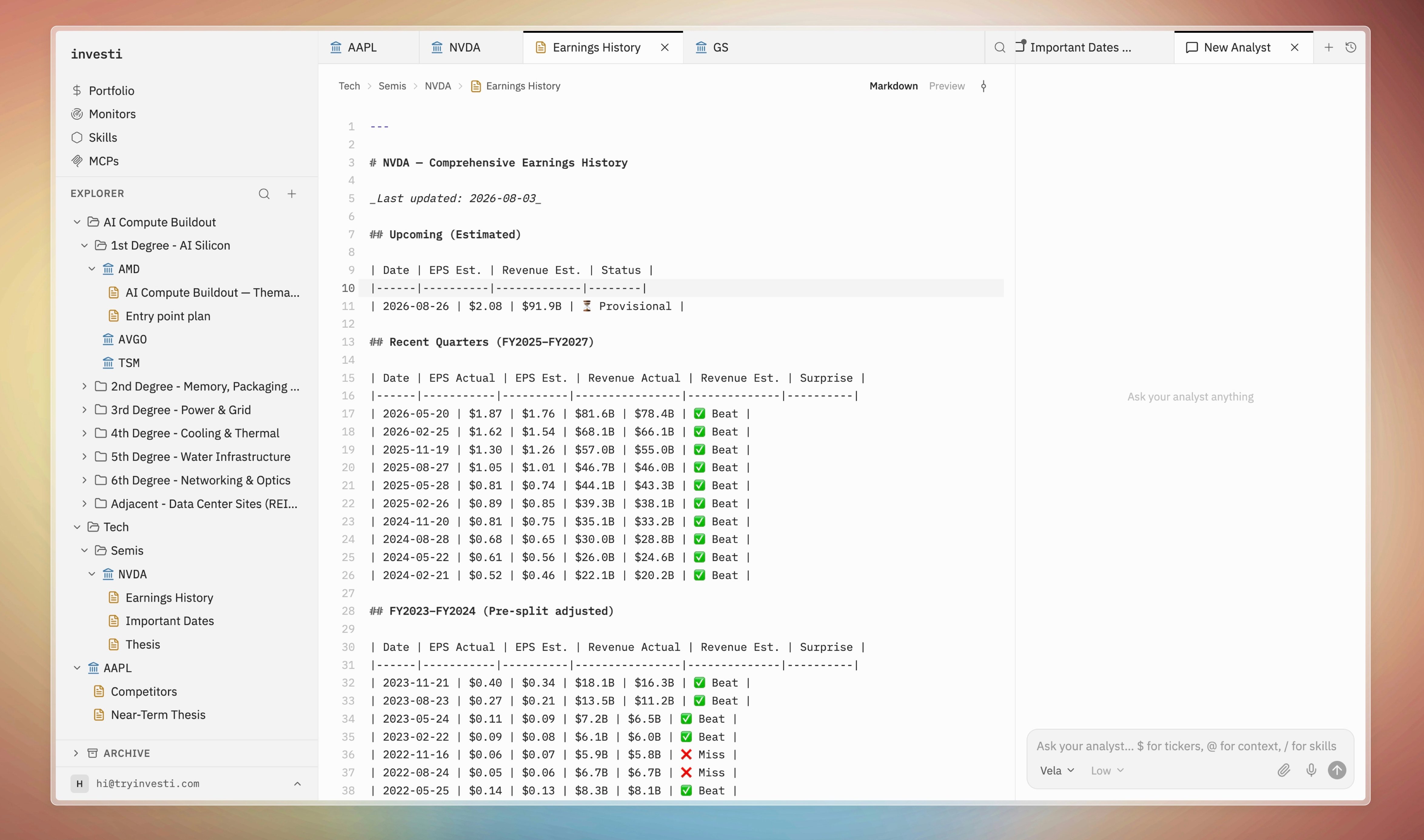
Writing
Notes open as tabs with two modes, toggled at the top:- Markdown: a code editor with markdown syntax highlighting, line numbers, undo history, and line wrapping.
- Preview: the rendered document. Click anywhere in the preview to jump back into editing.
Autosave
Notes save automatically about a second and a half after you stop typing; a pulsing “Saving…” dot confirms it. Every save also records a revision, so nothing is ever lost to an edit.Version history
The history icon in the note toolbar opens a timeline of every revision, filterable to the last hour or day. From the timeline you can:- Diff any version against the one before it (“Show changes vs previous version”).
- Restore a version with “Make this version the current note”. Restores are non-destructive: the old version becomes a new revision at the head, so the history itself is never rewritten.